You can turn a dollar amount into a sample check PDF without opening a software account. In this walkthrough, we first checked $1,005.07 in CheckMatter, then entered clearly fictional details in CheckCrafter Quick Check, selected a middle-page layout and downloaded an unsigned PDF.
The test reached PDF download. We did not print a paper check, connect a bank, issue a payment or test bank acceptance. If you only need the amount in words, the free US check amount converter is enough.
Commercial disclosure: This pilot contains ordinary merchant links, not affiliate links. CheckMatter has no approved affiliate link for the products mentioned and received no payment or private product access for this test. The demonstrated editor was publicly accessible. Our calculator and Copy button do not require a purchase.
Watch the calculator-to-PDF workflow
Open the tutorial video. A text walkthrough is below.
What we tested
Test date: November 1, 2026. Environment: desktop Chrome. Access: public guest editor, without signing in or entering a payment card. We used $1,005.07, check number 0001 and an unsigned sample dated November 1, 2026.
- Verified: CheckMatter amount conversion and Copy; completion of the guest form; automatic amount wording in the PDF; top-to-middle layout switching; PDF download; the guest credit in the output.
- Not tested: physical printer alignment, magnetic-ink scanning, bank deposit or acceptance, signatures, account integrations, saved records, bulk printing, security controls or paid-account features.
This is a workflow test, not a rating of the entire product. The zero-filled account fields used here are deliberately invalid demonstration data. Do not copy them into a real payment.
Step 1: check the dollars and cents
- Open the CheckMatter converter with the practice amount $1,005.07.
- Choose Convert amount. Compare the numeric amount, $1,005.07, with One thousand five and 07/100.
- Choose Copy amount in words if you need the wording elsewhere. Our clipboard test returned that exact line.
The cents are seven cents, so the fraction is 07/100, not 70/100. We also checked $0.05 in the converter; it produced “Zero and 05/100.” For the fields on an ordinary handwritten check, use our separate complete check-writing guide.
The calculator is a formatting aid. It does not verify an invoice, a payee or available funds. The next editor also generates its own amount wording, so use the calculator as an independent comparison rather than assuming a paste is required.
Step 2: open the guest editor
On CheckCrafter Quick Check, we could open the editor without an account. Its main sections were payment details, bank details, and review/print. The required-field counter reached eight of eight when our sample was complete.
For a practice run, use a visibly voided example. In our recording:
- The payee was VOID SAMPLE — NOT PAYABLE.
- The amount was 1005.07 in the USD field.
- The check number was 0001, and the memo was VOID — DEMONSTRATION ONLY.
- The account-holder and bank names explicitly said they were fictional or invalid.
- The routing and account fields contained only zeros. We left the optional address and signature blank.
Those entries demonstrate the interface; they are not instructions for issuing a check. For a real check, use only an account you are authorized to use and confirm the required details privately with your bank. Keep real banking data out of tutorials and public screenshots.
Step 3: review the preview and choose a layout
We selected Review & print. A dialog opened with a PDF preview and three template choices: Standard business check, Standard (middle), and Standard (bottom). We changed from the first option to Standard (middle), then allowed the preview to regenerate.
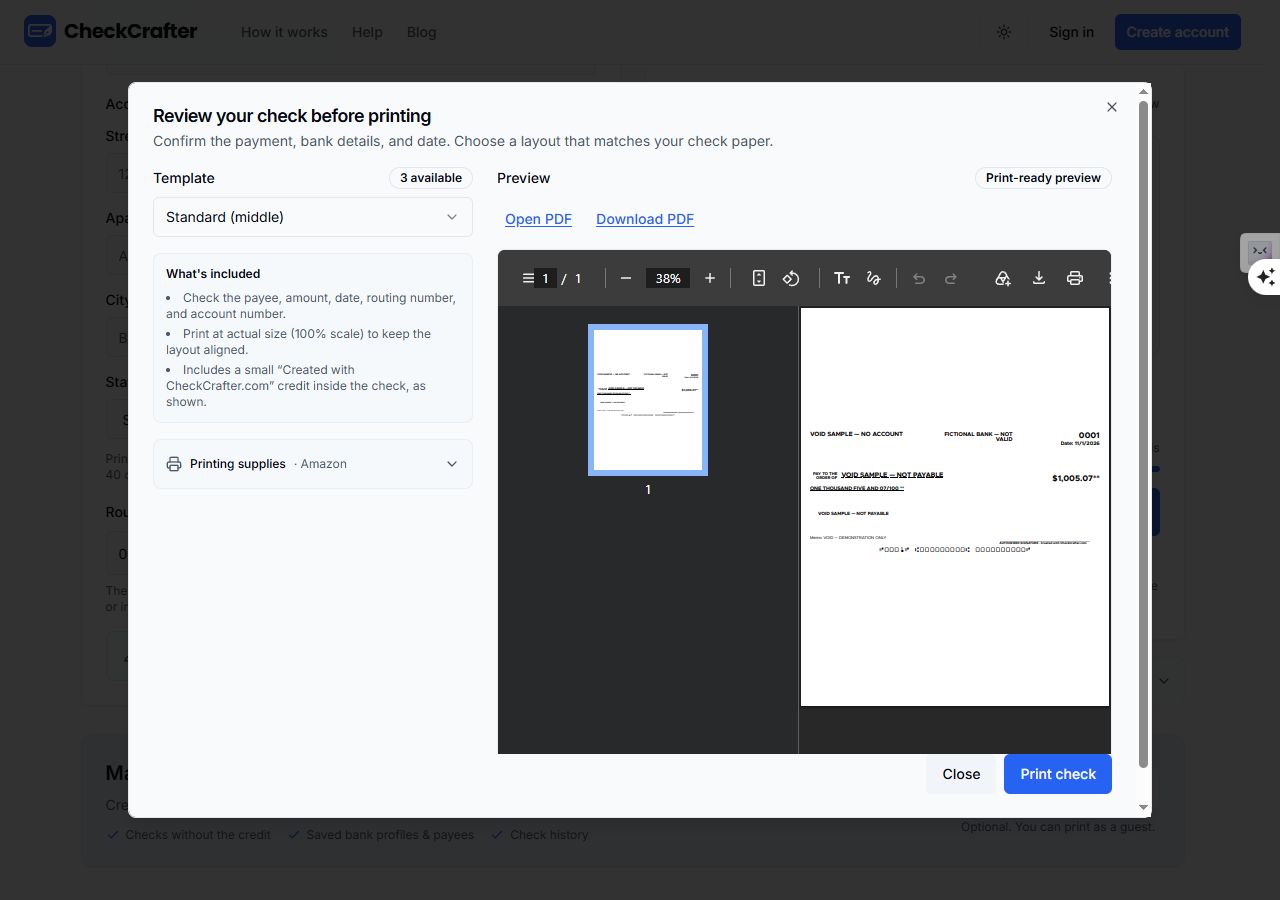
The three positions are layout choices. Selecting one does not prove compatibility with a particular stock, printer, MICR requirement or bank. Before paying for software or supplies, check those requirements for your actual account and printer.
Step 4: download and inspect the PDF
After the preview finished, we chose Download PDF. Chrome saved a one-page US Letter file measuring 612 × 792 points (8.5 × 11 inches). We opened the downloaded file for a separate visual check.
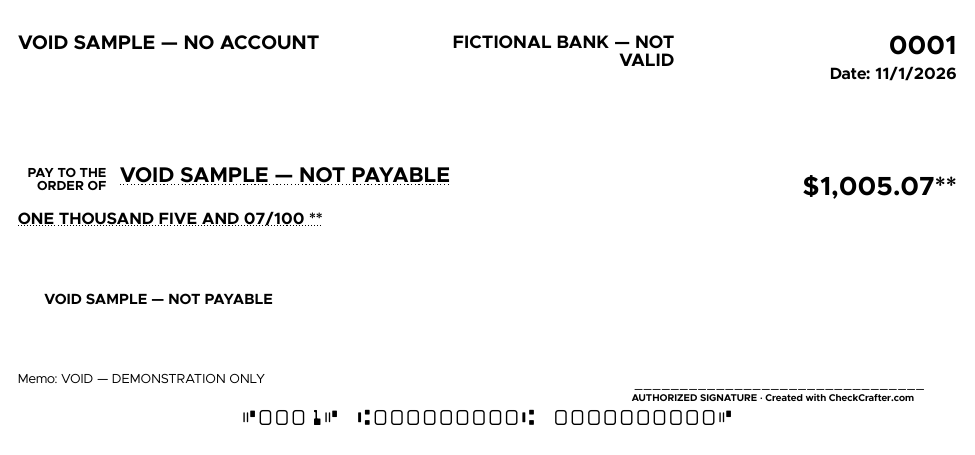
The file showed $1,005.07 and ONE THOUSAND FIVE AND 07/100. It also retained check number 0001, the sample date, our void memo and the small “Created with CheckCrafter.com” credit. We did not add a signature.
The most important limitation: the editor generated this preview with all-zero routing/account entries. A completed preview therefore did not establish that the account existed, belonged to the user or had funds. Treat successful PDF generation as an output-format check.
The review dialog advised printing at actual size, or 100% scale. We did not click through to a physical print or test alignment. If you proceed with your own authorized workflow, test the layout on plain paper before using your check stock and follow your bank, software and printer instructions.
Useful features and drawbacks from this test
What helped
- No account barrier for this guest test: we reached a downloadable PDF without registration or a card.
- A useful second comparison: the generated dollar wording matched the independently checked amount.
- Layout review before download: we could inspect the middle-page placement without committing to a paper print.
- A separate output file: downloading let us inspect the PDF outside the live editor.
Where the guest workflow stops
- The output contains a small vendor credit. The interface offers account creation to remove it; we did not test that option.
- The PDF preview is not evidence of account validation, available funds or bank acceptance.
- Changing the layout caused a short preview reload, so we waited for the new file before downloading.
- We did not test a saved register, repeat-payee workflow, team approvals or accounting integration. Do not choose recurring-business software on this guest test alone.
Cost and sensible alternatives
For this sample: we paid $0 and did not enter a payment card. At the time checked, the vendor’s plans section described its tiers as free during beta, subject to limits. That is a dated vendor statement, not a promise of permanent free service or a test of every tier. Paper, ink, postage and future plan charges are separate considerations.
If you only need wording: stay with the free CheckMatter converter or write an existing bank-issued check using the field-by-field guide. A new software subscription is unnecessary for that task.
If you need a recurring printing or mailing service: Checkeeper’s pricing page listed $14.99 per month, a 14-day trial without a card, and optional check mailing at $1.50 each when checked on November 1, 2026. We researched those published terms; we did not test its application, mailing service or trial. Recheck its current inclusions and charges before choosing.
If you already use QuickBooks Online: first review Intuit’s check-printing instructions. They describe adding checks to a print queue and setting up the printer. We did not test a QuickBooks account, and an additional product may be unnecessary if your existing workflow already meets your needs.
Choose based on the task you can verify: occasional wording, a single PDF, or a repeatable accounting/printing process. Test the relevant workflow before making a subscription decision.
Questions before you choose
Does CheckMatter print or send the check?
No. CheckMatter formats the amount. The demonstration used a separate editor to generate a sample PDF. Neither using our calculator nor copying the result requires buying software.
Did this test prove the check would clear?
No. It was an unsigned, clearly voided sample with fictional banking fields. We tested PDF generation and visible formatting, not a real payment or deposit.
Can I use the all-zero sample fields for my own check?
No. They deliberately describe no real account. They are shown only to make the practice recording safe to share.
Is this a recommendation to switch accounting software?
No. We tested a narrow guest workflow. If you need records, approvals, integrations or mailing, compare those functions directly rather than extrapolating from the PDF demonstration.
Sources and test notes
- Our November 1, 2026 desktop Chrome recording, downloaded PDF and separate visual inspection.
- CheckCrafter documentation and the guest editor’s current interface.
- The dated merchant pricing and official Intuit instructions linked alongside the relevant statements above.
For a correction, use CheckMatter’s corrections process. The workflow is educational; confirm the requirements for your own authorized account and printer before issuing a real check.